
How to Download TikTok Videos on Android (Complete Guide 2026)
The definitive guide to downloading TikTok videos on any Android device — no watermark, no app needed.
Building free video-download tools since 2024. Expert in web APIs, extractors, and multimedia processing across all major platforms.
Download Free HD Videos & Media
TikTok · Instagram Reels · Facebook · Twitter/X · 100% Free · No Watermark
Android's open ecosystem gives you more options for downloading TikTok videos than iPhone — but it also means navigating unreliable apps, intrusive ads, and security risks. The safest and cleanest method is browser-based, and SaveFromInternet.com works on every Android device in any browser.
Why Web-Based Is Better Than Play Store Apps
- No permissions required — no access to your contacts, files, or camera
- No malware risk — no APK to install from unknown sources
- No Play Store — works on any Android version in any browser
- Always up to date — no manual updates needed when TikTok changes its API
- Completely free — no premium version, no download limits
Step 1 — Copy the TikTok Video Link
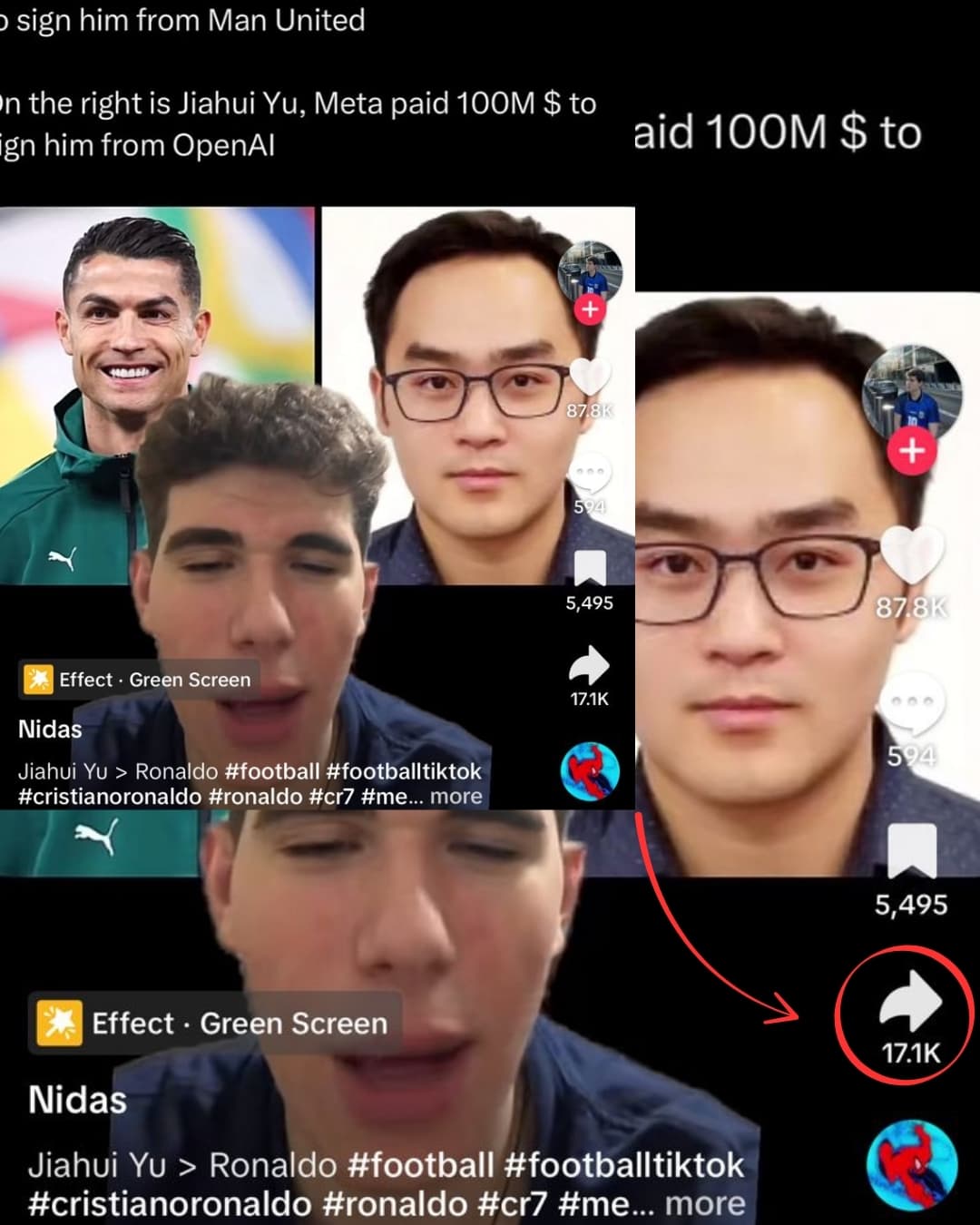
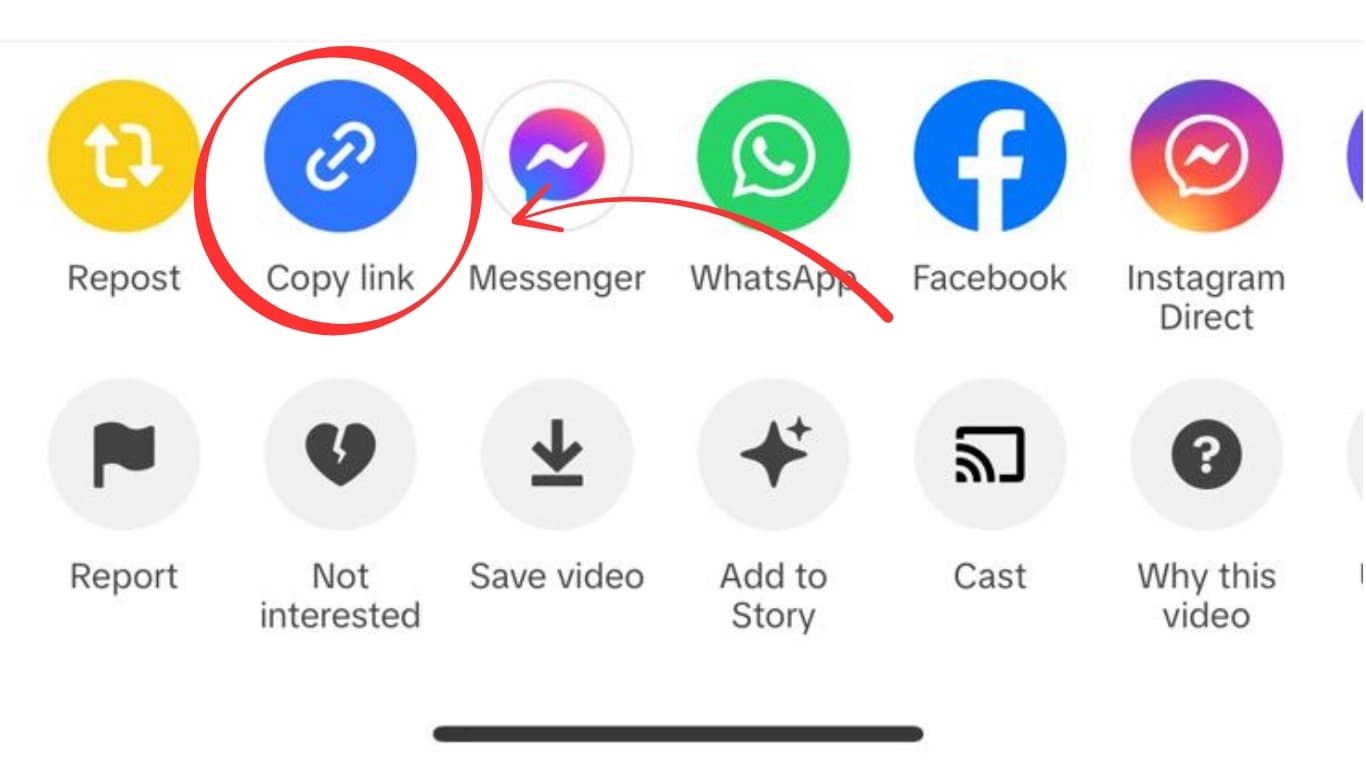
Open TikTok on your Android device. Find the video you want to download. Tap the Share button (arrow icon on the right side) and then tap Copy Link. The URL is now in your clipboard.
Step 2 — Open a Browser and Go to SaveFromInternet.com
Open any browser — Chrome, Firefox, Samsung Internet, or Edge. Type or paste savefrominternet.com into the address bar and navigate to the site.
Step 3 — Paste the URL and Download

Tap the input box, paste your TikTok URL (long-press → Paste), and tap Download TikTok Video. After processing, tap Download Video. The MP4 file saves automatically to your Downloads folder — no watermark.
Browser-Specific Instructions
Using Google Chrome on Android
Chrome handles Android downloads natively. After tapping Download Video, Chrome shows a download progress indicator at the bottom of the screen. When complete, tap Open to play the video or Open downloads to navigate to the file. Videos appear in your Downloads folder and are playable in any video player app.
Using Samsung Internet Browser
Samsung Internet has a dedicated download manager. After downloading, tap the Download complete notification. You can also access downloads via the three-line menu → Downloads. Samsung Internet often integrates more deeply with Samsung's Gallery app, so downloaded videos may appear there automatically.
Using Firefox on Android
Firefox handles downloads similarly to Chrome. The file goes to your Downloads folder. You can manage it through Firefox's built-in download manager under the three-dot menu → Downloads.
Where Do Downloads Save on Android?
The download location depends on your Android version and browser:
| Device / Android Version | Default Download Location | Access Via |
|---|---|---|
| Android 10+ | Internal storage → Download | Files app → Downloads |
| Samsung Galaxy | Internal storage → Download | Files app or My Files → Downloads |
| Google Pixel | Internal storage → Download | Files by Google → Downloads |
| OnePlus / OPPO | Internal storage → Download | File Manager → Downloads |
| Xiaomi / Redmi | Internal storage → Downloads | File Manager → Downloads |
How to Move a Downloaded Video to Your Gallery
Videos downloaded via a browser do not automatically appear in your Gallery app — they are in your Downloads folder. To move them:
- Open the Files app (or My Files on Samsung)
- Navigate to Downloads
- Long-press the TikTok MP4 file
- Tap Move or Copy
- Navigate to DCIM → Camera (or any Gallery folder)
- Tap Move here
After moving, the video appears in your Gallery app automatically. On Samsung Galaxy, downloaded videos often appear in Gallery under a "Downloads" album without needing to move them.
Android Downloader Comparison
| Tool | Type | No Ads | No Watermark | Mobile-Friendly | Safety |
|---|---|---|---|---|---|
| SaveFromInternet | Web | ✅ | ✅ | ✅ | ⭐⭐⭐⭐⭐ |
| SnapTik | Web | ❌ | ✅ | ✅ | ⭐⭐⭐ |
| SSSTik | Web | ❌ | ✅ | ✅ | ⭐⭐⭐ |
| Play Store apps | App | ❌ | Sometimes | ✅ | ⭐⭐ |
| APK downloaders | App | ❌ | Varies | ✅ | ⭐ |
Downloading TikTok Audio (MP3) on Android
SaveFromInternet also extracts audio from TikTok videos as MP3. After processing a TikTok URL, tap Extract Audio instead of Download Video. The MP3 saves directly to your Downloads folder. Open it with any music player app or set it as a ringtone via Settings → Sounds.
Downloading TikTok Photo Carousels on Android
For TikTok posts with multiple photos (carousels), paste the URL and tap Download Photos. SaveFromInternet packages all images in a ZIP file that downloads to your Downloads folder. Extract the ZIP using a file manager app to access the individual images in original quality.
Troubleshooting — Android Download Issues
Download says "Failed" in Chrome
This usually means storage is full. Check available space in Settings → Storage. Also try clearing Chrome's cache: Settings → Privacy → Clear browsing data.
File not appearing in Gallery after download
The file is in your Downloads folder, not your Gallery. Open the Files app → Downloads to find it. To make it appear in Gallery, move it to DCIM/Camera as described above.
TikTok URL not being recognized
Make sure you copied the full URL including the https:// prefix. Some sharing methods copy a shortened URL — paste it anyway and let the tool resolve it.
Video downloads with watermark
You may have accidentally opened TikTok's own save feature instead of using a third-party downloader. SaveFromInternet fetches the watermark-free source file directly from TikTok's API.
Frequently Asked Questions
Does it work on Samsung, Pixel, OnePlus, and Xiaomi?
Yes — it works on every Android device running any browser. There is no device-specific limitation.
Do I need to install anything on Android?
No. The entire process happens in your browser — zero app installs required.
Does this work on older Android versions?
Yes. Any Android version from Android 6 (Marshmallow) onwards works fine with Chrome or Firefox.
Can I download multiple TikTok videos at once on Android?
You can start multiple downloads by processing one URL, tapping download, then going back and pasting the next URL. Each file saves independently to your Downloads folder.
Related Guides
Photo by Daniel Romero on Unsplash
Download Videos, Reels & Audio Without Watermark
Paste any link into our free browser tools. Fast HD MP4 downloads, 320kbps MP3 audio extraction, and full-resolution photo carousels.