
How to Download TikTok Videos Without Any App — Complete Guide 2026
Download TikTok videos directly from your browser — zero apps, zero installs, works on all devices.
Building free video-download tools since 2024. Expert in web APIs, extractors, and multimedia processing across all major platforms.
Download Free HD Videos & Media
TikTok · Instagram Reels · Facebook · Twitter/X · 100% Free · No Watermark
You do not need to install a single app to download TikTok videos. SaveFromInternet.com runs entirely in your browser — Safari, Chrome, Firefox, Edge, or any browser on any device — with no installation, no account, and no limits.
Why Apps Are Often the Wrong Choice
The app stores are flooded with TikTok downloader apps. Most of them have serious problems:
- Intrusive ads — pop-ups, redirect ads, and forced video ads before each download
- Privacy risks — apps can access your contacts, gallery, location, and microphone
- Malware — low-quality apps in the Play Store and outside it have been found to contain spyware
- Watermark issues — many apps download the watermarked version anyway
- TikTok bans — TikTok actively blocks apps that violate its API terms, causing them to break suddenly
- Takes storage — you install an app just to use once or twice
A browser-based tool avoids all of these problems. It has zero permissions on your device and updates automatically whenever TikTok changes.
The Basic Steps (All Devices)
- Copy the TikTok link — Open TikTok, tap Share → Copy Link on any video
- Open your browser — Safari on iPhone, Chrome on Android, any browser on PC
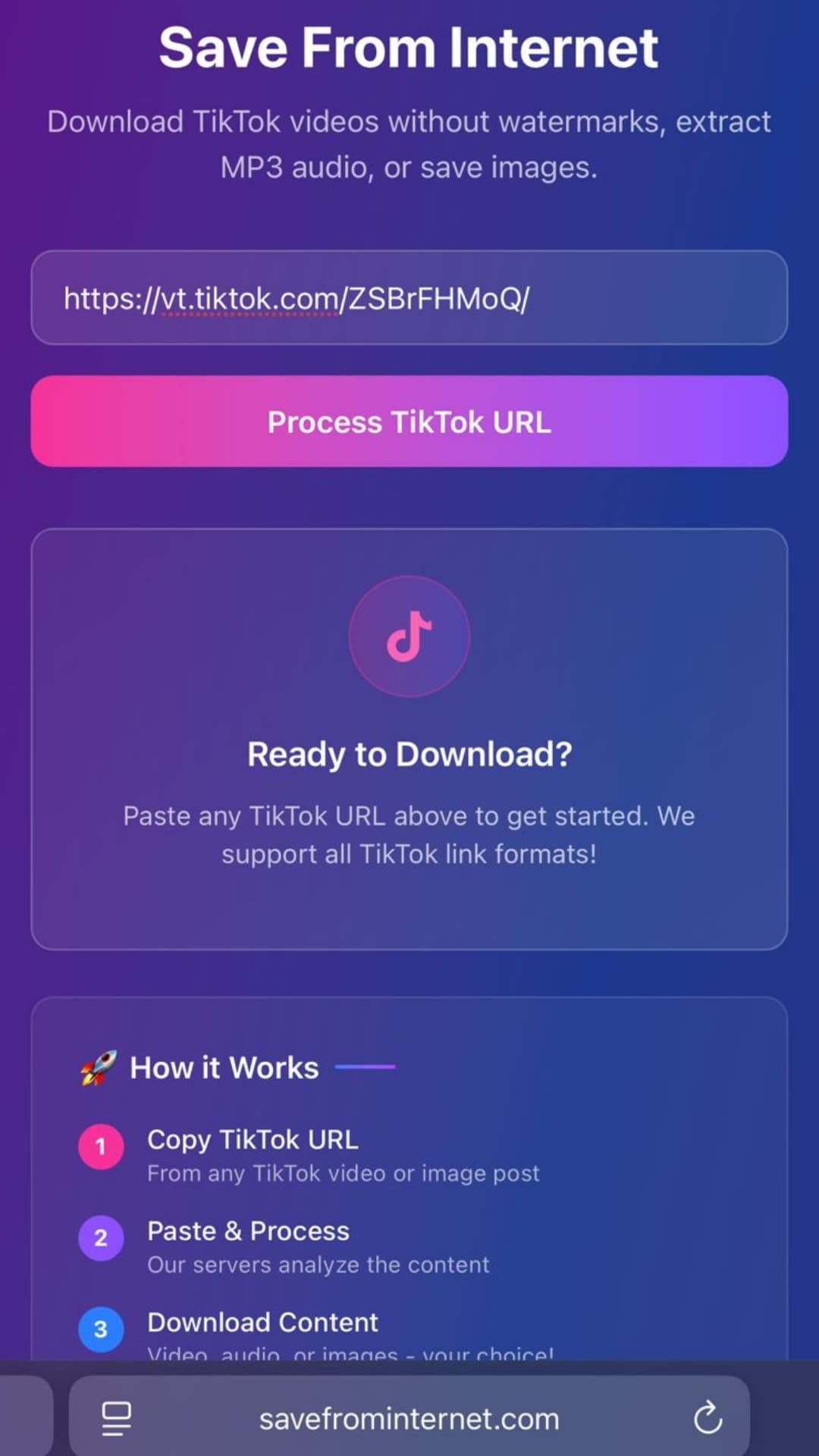
- Go to savefrominternet.com — paste the URL in the input box
- Tap Download TikTok Video
- Choose your format — video (MP4), audio (MP3), or photos (ZIP)
iPhone — Detailed Guide (Safari)
Safari is the recommended browser for TikTok downloads on iPhone because it handles file saving most reliably.
- Open TikTok and tap Share → Copy Link on the video
- Open Safari and go to savefrominternet.com
- Tap the URL field, paste, and tap Download TikTok Video
- After processing, tap Download Video
- Safari opens the video in a browser player — tap and hold the video to get a context menu
- Tap Save Video — the MP4 saves to your Camera Roll
iPhone with iOS 15 and Later
iOS 15 introduced improvements to Safari downloads. After tapping Download Video, you may see a Download button in a share sheet instead of the video opening in the player. Tap it — the file goes directly to Files → Downloads without needing the tap-and-hold step.
Android — Detailed Guide (Chrome)
- Open TikTok and tap Share → Copy Link
- Open Chrome (or Samsung Internet, or Firefox)
- Navigate to savefrominternet.com
- Paste the URL and tap Download TikTok Video
- After processing, tap Download Video
- Chrome downloads the file directly — find it in the Files app → Downloads
On Android, video downloads start immediately and save without any extra steps. No tap-and-hold needed. Chrome shows a progress indicator at the bottom — tap Open when it completes.
PC / Mac — Detailed Guide
- Open TikTok in your browser (tiktok.com) or the TikTok app
- Click the Share icon → Copy Link
- Open a new tab and go to savefrominternet.com
- Paste the URL and click Download TikTok Video
- Click Download Video — the MP4 saves to your Downloads folder
On PC and Mac, downloads are fastest because your internet connection is typically faster than mobile. HD TikTok videos (50–100MB) download in seconds on a typical home broadband connection.
What Can You Download Without an App?
| Content Type | Format | Notes |
|---|---|---|
| TikTok videos | MP4 | Watermark-free, HD quality |
| TikTok audio | MP3 | Original quality from TikTok's audio track |
| TikTok photo carousels | ZIP (individual JPGs) | All images at original resolution |
Browser Compatibility
| Browser | Platform | Works? | Notes |
|---|---|---|---|
| Safari | iPhone / Mac | ✅ | Best for iPhone — tap-and-hold to save video |
| Chrome | Android / PC / Mac | ✅ | Best for Android — direct download |
| Firefox | Android / PC / Mac | ✅ | Works well on all platforms |
| Samsung Internet | Android (Samsung) | ✅ | Integrates with Samsung Gallery |
| Edge | PC / Mac / Android | ✅ | Full support |
| Opera | All | ✅ | Works fine |
| Chrome (iPhone) | iPhone | ⚠️ | Downloads go to Files — not Camera Roll |
Can I Add SaveFromInternet to My Home Screen as a PWA?
Yes — on both iPhone (Safari) and Android (Chrome), you can add SaveFromInternet.com to your home screen as a Progressive Web App. This gives you a dedicated icon and the feel of an app without any of the risks:
- iPhone Safari: Tap the Share button (box with arrow) → Add to Home Screen → tap Add
- Android Chrome: Tap the three-dot menu → Add to Home screen → tap Add
The icon appears on your home screen. Tapping it opens SaveFromInternet.com in a full-screen browser window — fast access without searching through your browser tabs.
Privacy Advantage of Browser-Based Tools
When you use a browser-based tool instead of an installed app, the tool has:
- No access to your contacts, call history, or SMS
- No access to your photo library or camera (unless you explicitly grant it)
- No access to your location
- No persistent background activity — it only runs when you have the tab open
- No ability to track you across other apps on your device
Frequently Asked Questions
Does this work on iOS 17 and iOS 18?
Yes. Safari on any iOS version from iOS 14 onwards works correctly. iOS 18 did not change how Safari handles downloads.
Is there any limit on how many videos I can download?
No. Download as many videos as you need — there are no daily limits, no account required, and no paywalls.
Can I download TikTok videos without a TikTok account?
You do not need a TikTok account to use SaveFromInternet. However, you do need the video's URL. If you cannot access TikTok at all, you can search for videos on the TikTok website from your browser without logging in, then copy the URL directly from the address bar.
Does this work if TikTok is banned in my country?
If TikTok is completely blocked in your country, you would need to first access a TikTok video URL through another means (such as a VPN or a shared link from another region).
Why does the video open in my browser instead of downloading?
On iPhone Safari, videos open in a browser player first — tap and hold the video, then select Save Video. On Android, if a video opens in the browser instead of downloading, tap the three-dot menu → Download.
Related Guides
Photo by Ryan Stone on Unsplash
Download Videos, Reels & Audio Without Watermark
Paste any link into our free browser tools. Fast HD MP4 downloads, 320kbps MP3 audio extraction, and full-resolution photo carousels.